The Ultimate Guide: 3 Ways to Create a Professional Resume with Word, LinkedIn, and AI
November 18, 2025 · 12 min read
BlogIn an increasingly demanding job market, knowing how to create a professional resume is the difference between landing an interview and being invisible among hundreds of applicants. For years, Microsoft Word included a built-in feature called LinkedIn Resume Assistant, which let users see real examples of roles and skills from the industry while they drafted their resume.
However, after its official discontinuation in late 2022, many candidates were left disoriented, believing the only alternative was to start from a blank page or pay for expensive design subscriptions.
The reality is different: today’s technology offers far more complete methods. It is now possible to create a professional resume by combining the advanced features of Microsoft Word, the database behind your LinkedIn profile, and the analytical power of artificial intelligence. Throughout this practical guide, we break down step by step the three most effective ways to design a flawless document, tailored to automatic ATS filters (Applicant Tracking Systems) and appealing to recruiters.
Why LinkedIn Resume Assistant mattered so much, and what it taught us
To understand how to structure a competitive CV today, it helps to remember what made LinkedIn Resume Assistant so valuable. It was not a simple cosmetic editor, but a direct bridge to the real job market.
Inside Word’s side panel, the tool provided:
- Real examples of work experience: it let you filter by role and industry to see how other professionals worded their duties, achievements, and responsibilities.
- The most in-demand skills: it identified the technical and soft skills most mentioned across profiles and job postings for the target role.
- Editorial guidance: contextual tips on how to describe academic degrees, certifications, and projects.
- Direct connection to openings: it suggested open LinkedIn roles linked to the profile you were drafting, letting you apply straight away.
Although Microsoft removed the native integration, the methodology is the same. To create a successful professional resume today, you need to replicate those three pillars: legible design, consolidated data, and keywords aligned with the posting.
Method 1: Use Microsoft Word’s predesigned templates
Microsoft Word remains the standard word processor in business environments. Unlike complex visual design tools such as Photoshop or Canva (whose multi-column layouts and text boxes often break how ATS selection software reads a document), Word produces clean, easily parseable files.
Advantages of using Word for your resume
- Universal compatibility: any company or recruiter can open a
.docxfile or its.pdfexport. - ATS compliance: linear structures that make it easy to automatically extract contact details, education, and experience.
- Layout flexibility: full control over margins, line spacing, fonts, and heading hierarchy.
Step-by-step: creating a professional resume in Word
1. Open the template gallery:
- Open Microsoft Word on your computer.
- Click File, then New.
- In the built-in search bar, enter terms like “Resume”, “CV”, or “Professional resume”.
Web alternative: if the local options feel limited, visit Microsoft Create (create.microsoft.com), the official platform where Microsoft gathers hundreds of free modern templates organized by category (basic, modern, chronological, or functional).
2. Choose the right layout:
- Favor single-column templates, or clean two-column ones.
- Avoid graphic elements like progress bars for languages or skills (for example, “English: 80%”), since recruiters consider them to carry no measurable value and parsers do not recognize them.
3. Replace and customize the default fields:
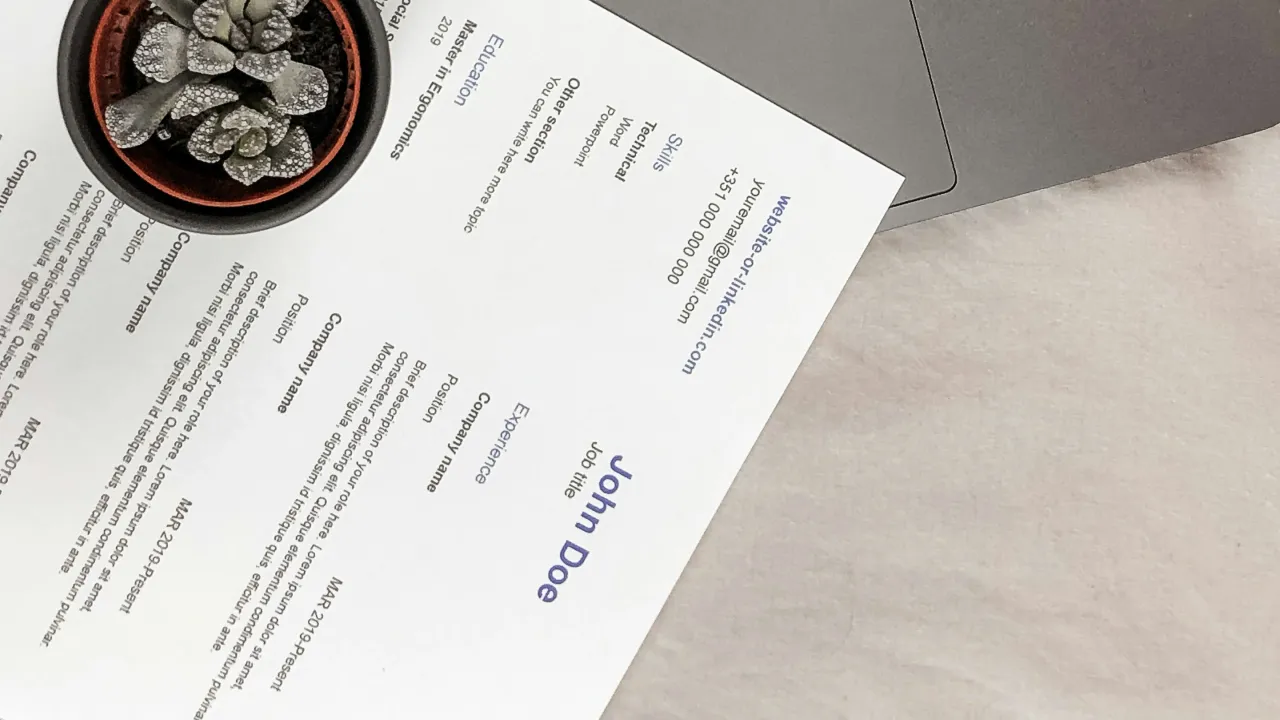
- Header: full name, professional title, LinkedIn link, email address, and phone number (avoid adding a full home address or marital status).
- Professional summary: a paragraph of 3 to 4 lines summarizing your years of experience, your main specialty, and your strongest value proposition.
- Work experience: reverse chronological order (most recent role first). Each position should include the job title, company, dates, and 3 to 5 bullet points focused on measurable achievements.
- Education and certifications: academic degrees, university or institution, and graduation year.
4. Set up the export:
Go to File > Save As and choose the PDF format. The PDF format freezes fonts and margins, guaranteeing the recruiter sees the layout exactly as you designed it.
Method 2: Export your LinkedIn data and turn it into an editable CV
If you have a well-maintained LinkedIn profile, you do not need to write your career history from scratch. Your profile already holds exact dates, job descriptions, certifications, and recommendations. The challenge is turning that scattered data into a formal document.
Phase 1: Extracting the data from the platform
LinkedIn offers two ways to get your information:
Quick option: direct PDF download
- Log into your LinkedIn account from a web browser.
- Go to your public profile.
- Just below your banner photo and headline, click the More… button (next to “Add profile section” and “I’m interested in…”).
- Select Save as PDF.
LinkedIn will automatically generate a document with your full career history.
Advanced option: exporting the full data archive
If you want a complete backup of all your past positions, recommendations, and skills in raw format:
- Click your top profile picture (Me) and select Settings & privacy.
- In the left sidebar, go to Data privacy.
- Find the How LinkedIn uses your data section and click Get a copy of your data.
- Check the Profile box and request the file. You will receive a download link by email with structured files in
.csvformat.
Phase 2: Converting it into an editable, professional format
The PDF LinkedIn provides by default is far too rigid, visually unappealing, and runs to too many pages. To turn it into a real application document, you have two options:
Native Word conversion:
Open Microsoft Word, go to File > Open, and select the PDF you downloaded from LinkedIn. Word will run its PDF-to-editable-text converter at no extra cost, letting you copy the clean text blocks into your final template.
Direct import platforms:
There are tools built specifically to absorb your LinkedIn profile or PDF and reorganize it into high-impact templates:
| Tool | What it offers |
|---|---|
| Enhancv | Imports your profile and restructures sections with a modern design. |
| Kickresume | Has a LinkedIn importer that organizes your experience and suggests wording improvements. |
| Teal | A full job-search platform with a CV builder that syncs directly with your LinkedIn extension. |
| Jobscan | Scans your extracted CV against a real job posting to calculate your ATS match percentage. |
Method 3: Optimize and customize your CV with artificial intelligence
An attractive template is no longer enough; the content must speak the language of the role you are targeting. Using artificial intelligence to create a professional resume lets you adapt your experience to the exact terms of each job posting in minutes.
1. AI platforms built for resumes
- Rezi: designed 100% around ATS standards. It features an AI bullet-point generator that turns everyday tasks into statements of impact.
- Resume.io: offers recruiter-validated bullet phrases and editors with real-time tone correction.
- Zety: a step-by-step guide with automatic recommendations based on your industry.
2. Using large language models (ChatGPT, Microsoft Copilot, or Claude)
If you prefer not to pay for closed tools, you can use conversational assistants to refine your CV text before pasting it into your Word template.
A practical prompt example to optimize experience bullets:
“Act as an expert recruiter in my field. Below I will share a job description and a draft of my previous work experience. Please rewrite my experience bullets using Google’s formula (measurable achievement + context + action taken), naturally weaving in the job posting’s keywords without lying or exaggerating.”
With this approach, you ensure every version of your resume highlights exactly the skills the employer is checking for in the first 6 seconds of review.
Comparison: which method is best for your profile?
| Method | Difficulty level | Time required | Biggest advantage | Recommended for |
|---|---|---|---|---|
| Word templates | Low | 30 - 60 min | Full format control and ATS compatibility. | Traditional applications and corporate profiles. |
| LinkedIn import | Very low | 15 - 30 min | Avoids writing from scratch if you have an active profile. | Professionals with long, up-to-date work histories. |
| AI optimization | Medium | 10 - 20 min | Surgical personalization for every posting. | Competitive sectors and automated selection processes. |
Final recommendations for a professional result
Whichever path you choose to create a professional resume, make sure you follow these three fundamental principles before sending your application:
- Maximum length: unless you are an academic, medical, or executive profile with more than 15 years of experience, keep your document to one or at most two pages.
- Results over responsibilities: instead of listing duties (“Managed social media accounts”), focus on the impact of your work (“Increased organic engagement by 35% through a new content strategy”).
- Proofreading and PDF format: a single typo can discard an outstanding application. Always review the final document and export it as a PDF, making sure the filename is clear (for example:
CV_Firstname_Lastname_Role.pdf).